Setup Mailissa Addin in Microsoft 365#
Note
To make the Mailissa Addin work correctly in your Browser (Outlook Web Access) you have to allow third party cookies.
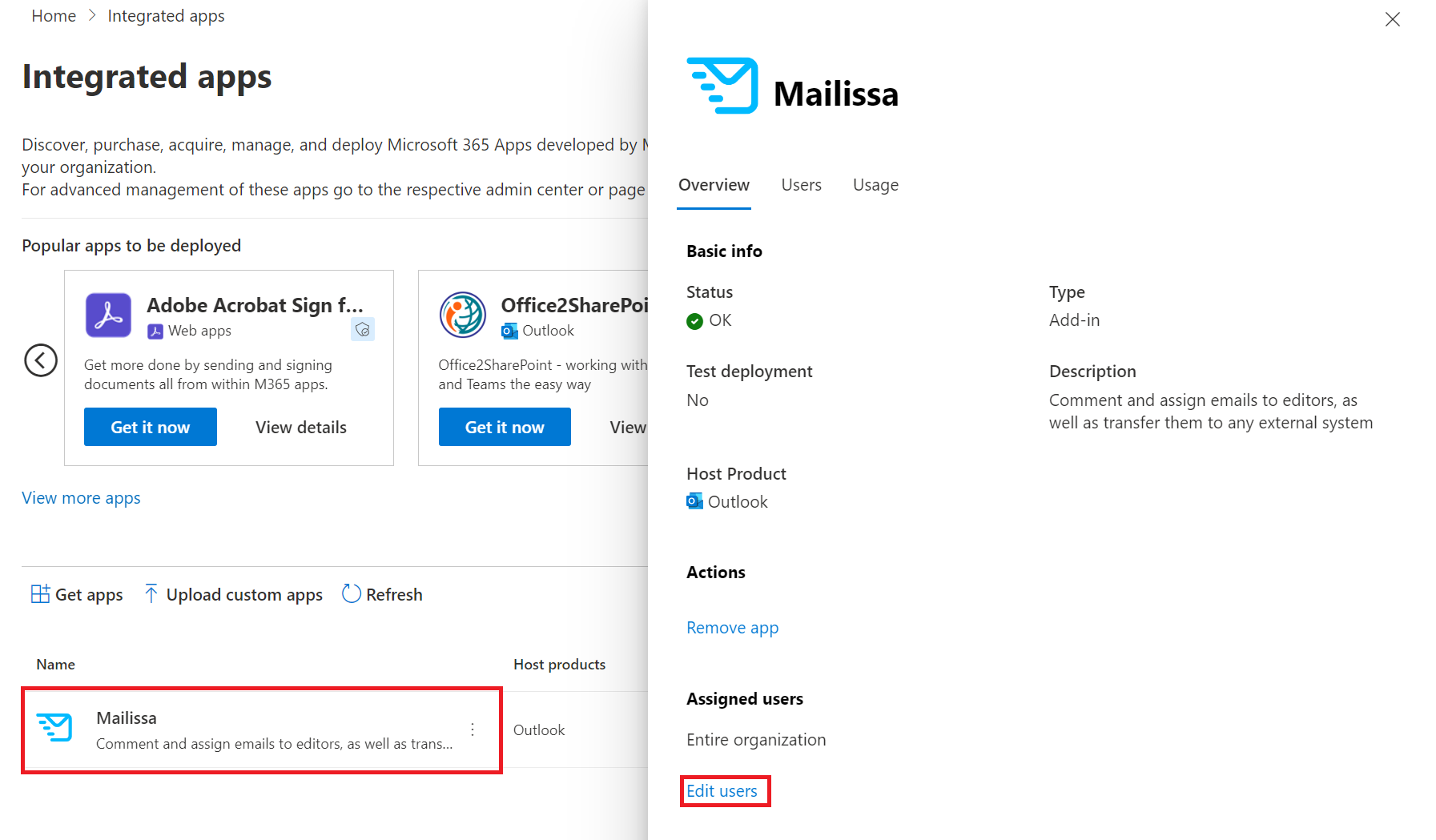
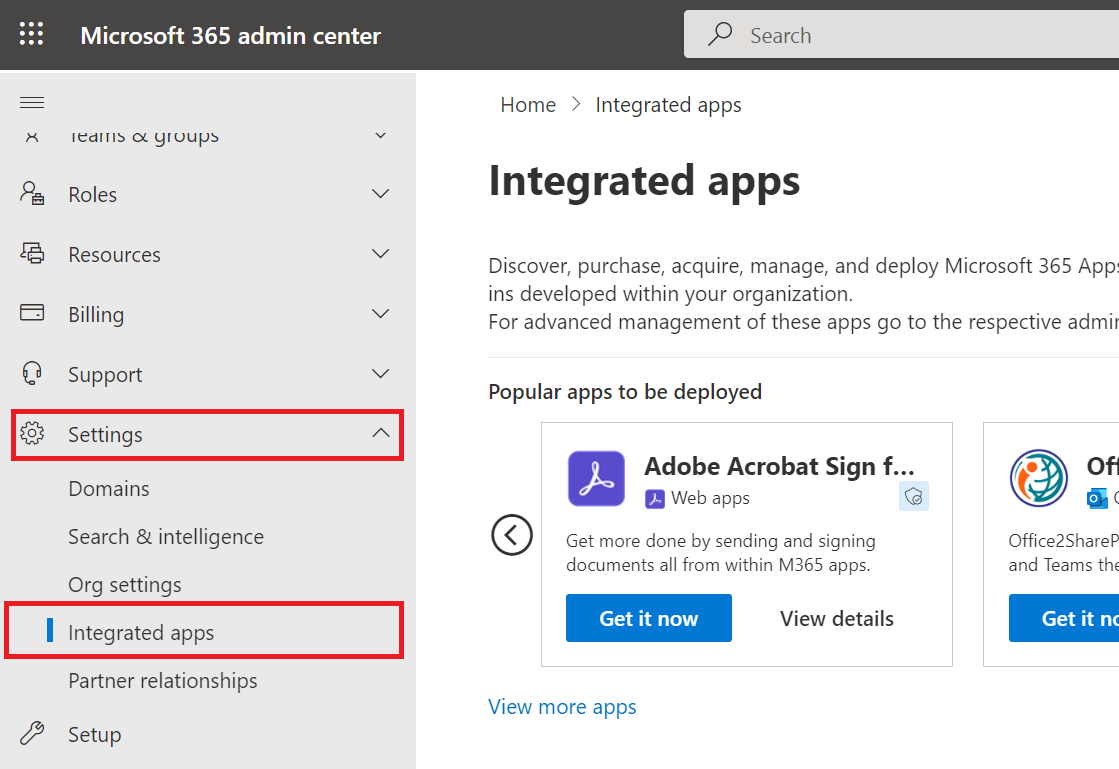
After you have added Mailissa to your tenant (from the Outlook store) you must assign it to the users in your company. To do this please open the admin area for the Integrated Apps. You can find it either under this link or in the menu bar of the M365 Admin area.
Note
You need certain permissions in your Microsoft 365 tenant. If you do not see individual menus, this is probably because you do not have the appropriate permissions. In this case, you should contact one of your M365 administrators.
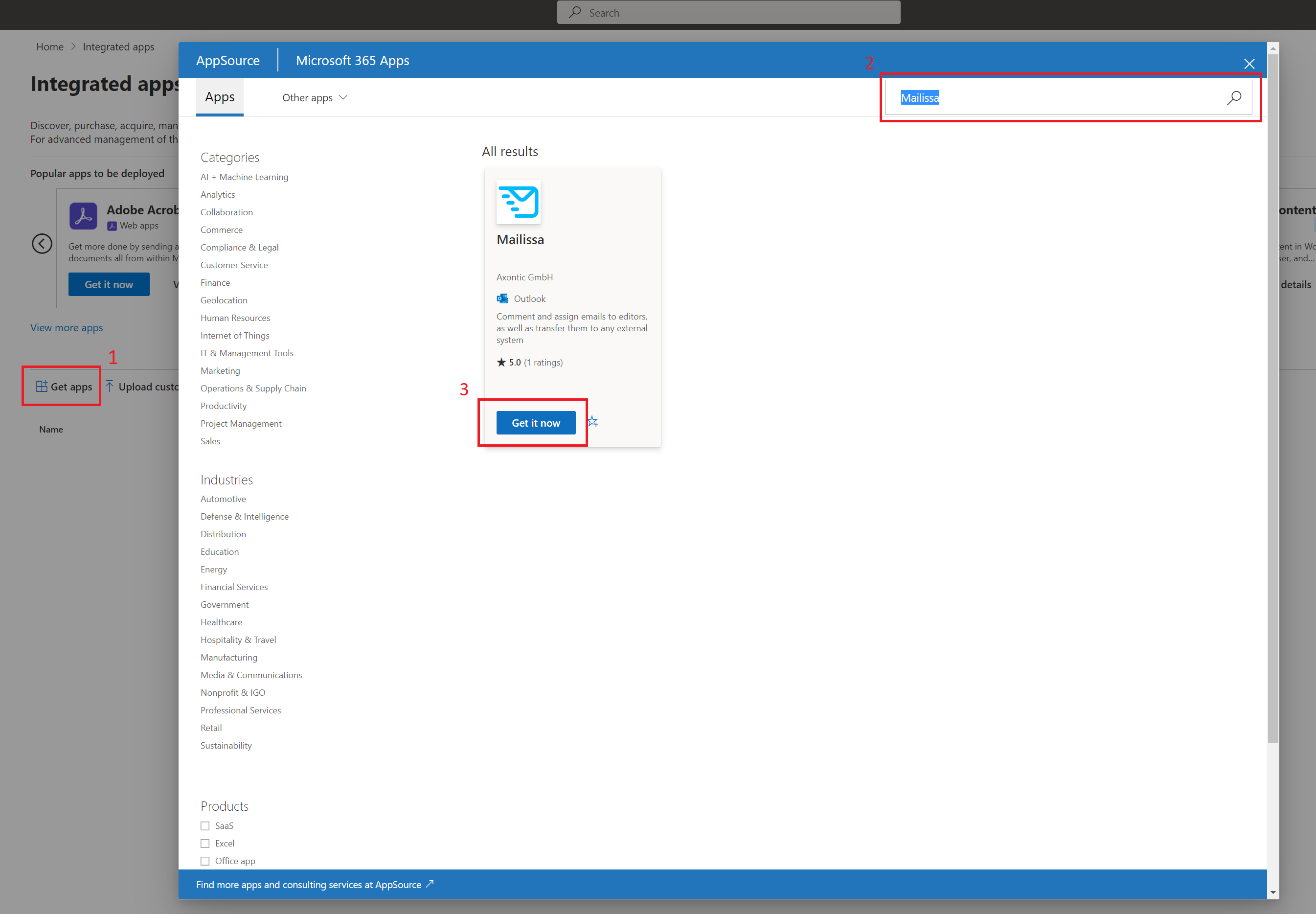
Click Get Apps, find Mailissa in the Outlook App Store and install it for your tenant.
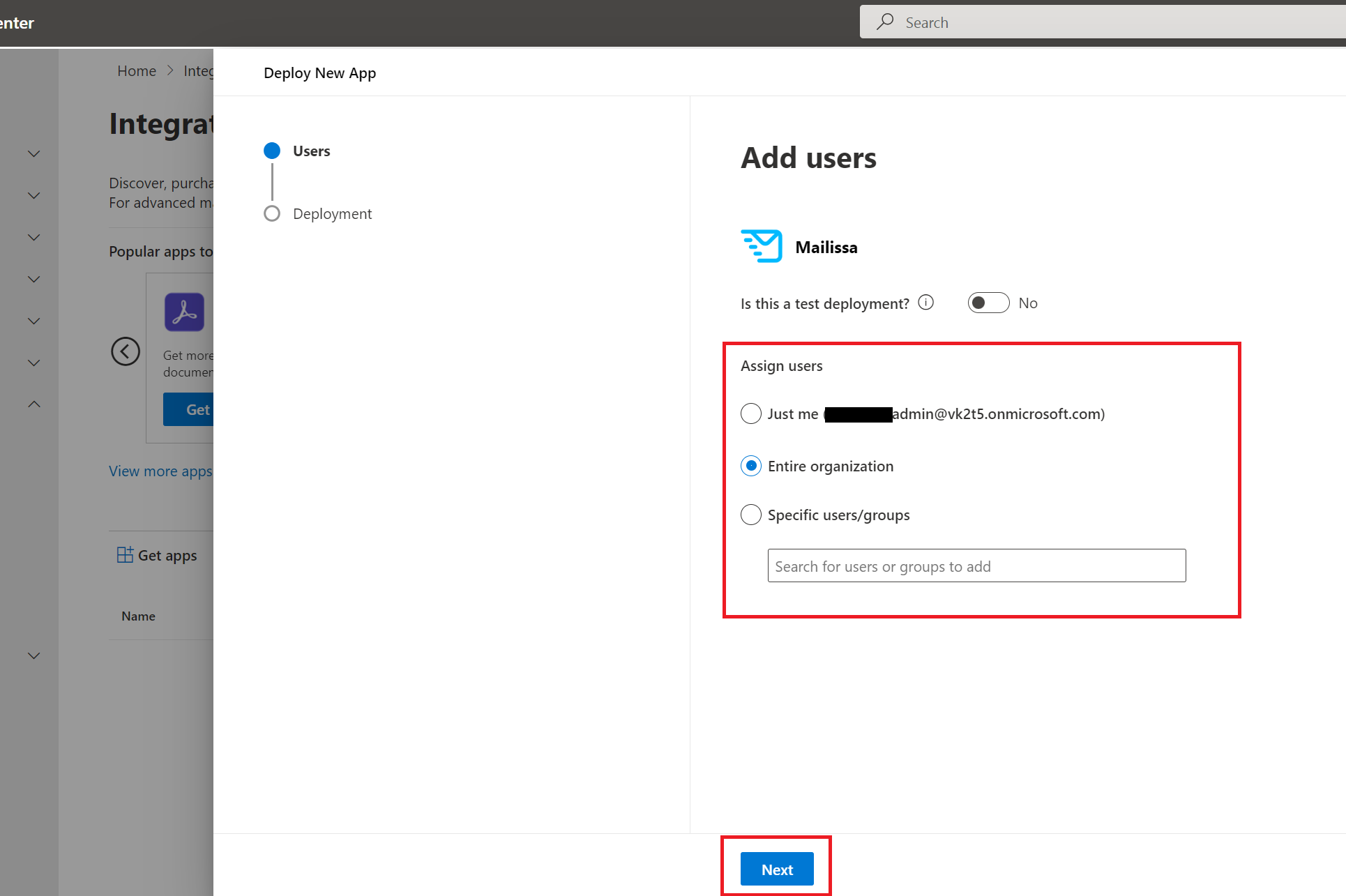
Now you can select who should receive the add-in in your company. Select one of the options and confirm with Next.
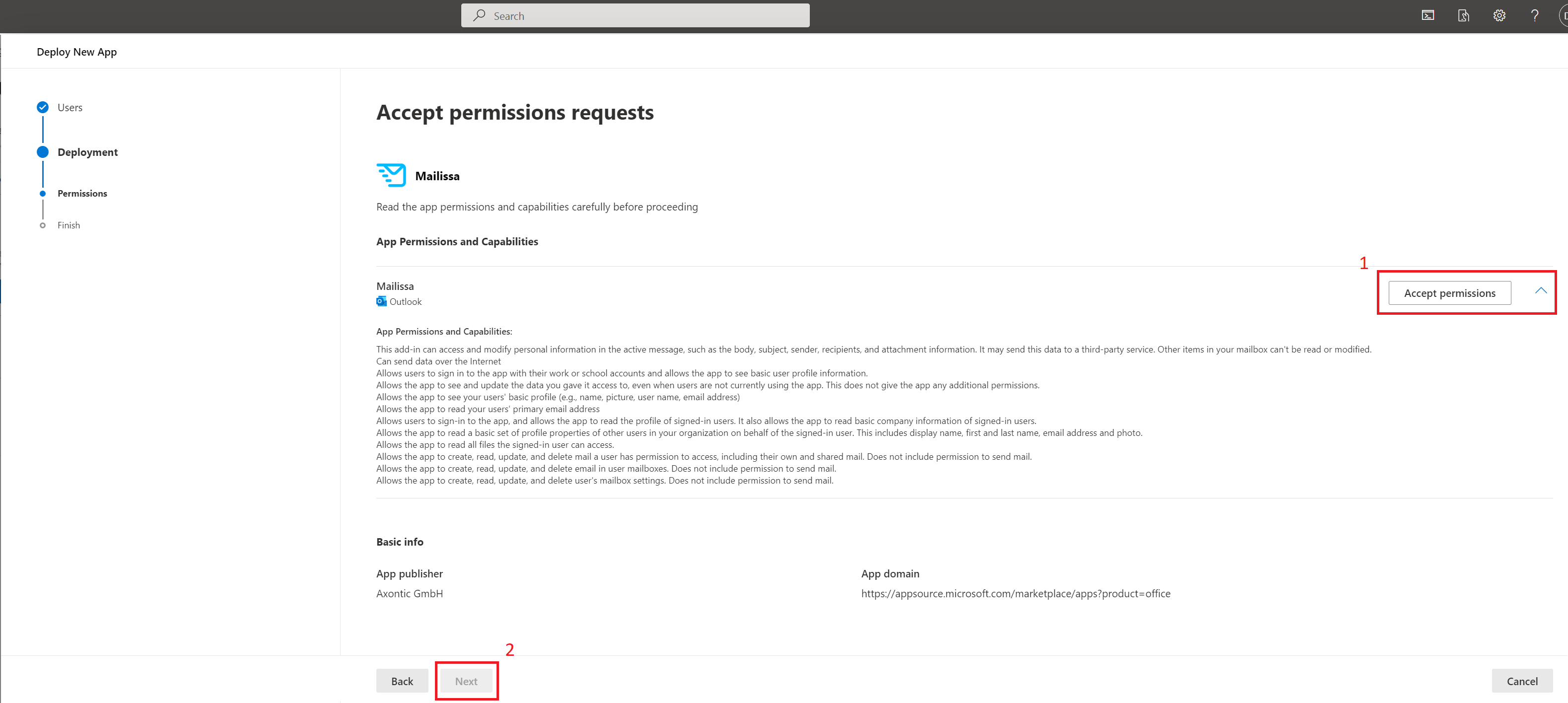
Accept the requested permissions and Mailissa is successfully installed for the users.
Info
According to Microsoft, it can take up to six hours for apps to show up in Outlook.
If you want to edit the assigned users, just click on the application again and select Edit Users.